

Inside a company, an order entered into the management system can easily turn into a game of telephone: engineering retypes it into the CAD/CAM software, the shop floor produces it, and at the end of the week someone reports times and quantities by hand. At every step, you risk entering the wrong part number, losing a dimension, or keeping an estimated cost instead of a measured one.
ERP integration eliminates this re-entry. It connects planning, design, and production so that every piece of data is entered only once and reaches the people who need it, without errors.
But what does this mean in practice for a company running a fleet of CNC machines? What information needs to flow between ERP, MES, and CAD/CAM? And where should you start?
We’ll walk you through it in this article.
What Does ERP Integration Mean in CNC Manufacturing?
ERP integration connects your existing management system with the software that runs design and the shop floor. Orders, bills of materials, and production progress data then move from one system to another without manual entry.
A company that processes wood, stone, glass, or composite materials typically uses these systems:
- the ERP, to manage customers, orders, purchasing, inventory, and costs;
- the CAD/CAM software, to turn the design into parts, machining operations, and machine programs;
- the MES, to track jobs on the shop floor and collect times and statuses from each workstation.
Integration doesn’t mean you have to connect everything. It means choosing the system of record for each piece of data and making sure that data reaches the people who need it, in the right format.
ERP, MES, and Production Management Software: Who Does What?
ERP and MES answer different questions. The ERP tells you what you need to produce, with which materials, and at what cost. The MES tells you what is happening on the shop floor right now.
The CAD/CAM software translates the order into geometry, machining operations, and machine code.
From ERP to Production: Orders and Jobs
Everything starts with the order. Customer, quantity, and delivery date are all stored in the ERP.
TheCAD/CAM software, on the other hand, needs to know which parts to produce and with which dimensions and materials. The point of contact is the job: a list of coded items that engineering imports instead of retyping.
The parametric model handles dimensional variants, such as a taller door or a deeper countertop, so you don’t have to redraw the different parts of the design.
From Engineering to the Shop Floor: BOMs, Cutting Lists, and Programs
The bill of materials, the cutting list, and the machine programs are all generated from the parametric design.
The ERP uses the bill of materials to calculate how many panels, slabs, and hardware items are needed, then purchases the components required to build the product. When a change is made, all of these documents update automatically, just as they do with parametric design for furniture and kitchens.
From the Shop Floor Back to ERP: Progress, Times, and Consumption
This is very often the missing piece in optimizing the production cycle.
The MES records the following data, directly from the machine or workstation:
- the start and the end of each operation;
- the assigned operator;
- the workstation status.
With ERP-MES integration, measured times replace the estimates used in the quote, so you’ll know whether a job actually stayed within its planned costs.
Want to know what data a CNC monitoring system should collect and what questions to ask the vendor?
What Are the Requirements for Production Management Integration?
Before choosing how to connect your systems, make sure four basic requirements are in place.
- Unique part numbers: the same panel, slab, or accessory must have a single code in both the ERP and the CAD/CAM software. Otherwise, every handoff requires a conversion table.
- Consistent units of measure: ERP and CAD/CAM use different units of measure, so define the conversion once, not for every job.
- A shared job number: this is the code that ties together the order, the design, the programs, and the production times.
- One owner for each piece of data: decide which system is the system of record for prices, materials, geometry, and timing. Once that’s set, make sure the other systems read from it without modifying it.
The CAD/CAM software must also import and export data in open formats. It must work with parametric models that update BOMs and cutting lists automatically.
Choosing CAD/CAM software and want to check how well it works with your management system?
Files, Database, or API: How Is Data Exchanged?
There are three ways to get ERP, MES, and CAD/CAM talking to each other. The right choice depends on how much data you transfer, how often, and who will maintain the connection over time.
| Method | How It Works | When It Makes Sense | What It Requires |
|---|---|---|---|
| File exchange (.csv, Excel, .xml) | One system exports the file to a shared folder and the other imports it | Data flows by job or batch; it’s the easiest method to set up and control | A rule on who archives files that have already been read; the data isn’t real-time |
| Database or staging tables | Both systems read from and write to dedicated tables | When you want to reduce manual steps between systems | Both vendors must know and maintain the table structure |
| APIs and web services | One system queries the other directly, on demand | Frequent exchanges and instant checks, such as material availability | Someone to develop the connection and maintain it whenever either software is updated |
For many manufacturers, file exchange is the most practical starting point. It’s quick to set up and covers the most important flow: the order that later becomes a job.
XFactory: DDX’s Production Management Software
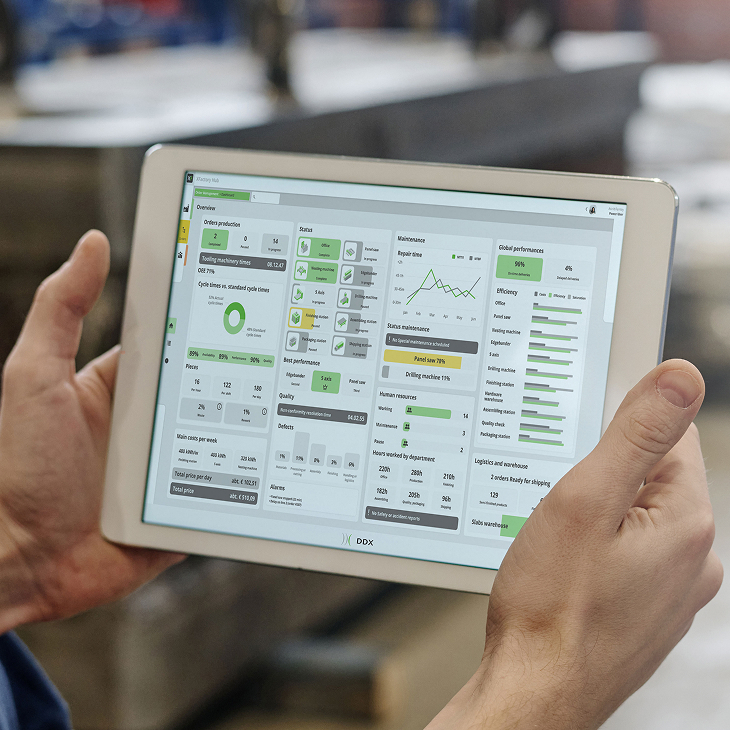
XFactory is our production control software. It tracks jobs on the shop floor and collects real-time data from CNC machines and manual workstations.
It consists of two modules:
- XFactory Node monitors each individual workstation: job progress, labor and machine times, and operator activity;
- XFactory Hub oversees the entire plant, from the office to shipping, with a 2D layout view and statistical reports.
Jobs reach the shop floor without being retyped. The EasyWOOD List Manager imports them from Excel or CSV files, and PowerWIN imports them from other software in WDL, LOG, and XML formats. From DDX applications, you send them directly to XFactory. For programs generated by third-party software, you attach ISO or other files to the jobs.
On the shop floor, XFactory tracks each part on the machine through communication drivers, available depending on the machine builder and model. Operators log in with a barcode or QR code. For every operation, the system records the operator, start and end times, duration, and energy consumption.
Want to see how XFactory tracks your jobs from engineering to the shop floor?